Loading..
Sponsored By :GoogleAdsense.
Showing posts with label blogspot. Show all posts

Monday, August 1, 2011

Creating A Random Blogroll Widget In Blogger

I was talking with Sarah a while back about Better Blogroll and she asked whether I knew of a similar widget for Blogspot users that would show a random subset of links from a Blogspot blogroll. Today, I finally spent a little time putting something together that would work within Blogspot’s unique framework. While I didn’t come up with anything that has as many options as Better Blogroll, I did manage to come up with a hack that will allow Blogger users to display a random subset of links from the Blogger Links Widget.

This is a hack, so you’re going to have to get a little dirty to make it work. In the end, you’ll have a random blogroll, but the widget will ignore the “number of items to show” and “sort” options in the widget because those will be controlled from within the new code.

If you’re interested in creating a random links list on your own Blogger/Blogspot blog, read on for the complete instructions.

How To Show Random Links On Your Blogspot Blog
  • Go to the Layout Tab and click Add Page Element.
  • Find Links List and click Add To Blog.
  • Type in a title and click Save Changes.
  • Go to the top of the Layout page and click Edit HTML
  • Click Download Full Template, so that if you mess this up, you’ll have a backup of your template.
  • Put a check in the checkbox that reads Expand Widget Templates.
  • Search for the line in the template that contains the title you input. It should look something like this:


  • This is the start of the widget you created. Don’t touch this line, but delete all the lines below it until you reach . This is the end of the link list widget. Now you have an empty links widget. Your code should look something like this:


<--NEW CODE WILL GO HERE-->


  • What you’ve done is gutted the Links widget, and now you’re going to fill the space with the new random blogroll guts. Take the following code and insert it into the section above that reads “NEW CODE WILL GO HERE”. Please don’t make me tell you that “<--NEW CODE WILL GO HERE-->” should NOT be in your code. You knew that already.


  • Well, Dr. Frankenblogger, you’re almost there. The widget defaults to 10 random links. If you want to change that, change the number on this line: var maxlinks = 10; to the number of links that you’d prefer.
  • Click Save Template.
  • Click on the Layout Tab.
  • Click Edit on the Links Widget and add some links to your blogroll. *dyers
Sunday, July 31, 2011

Membuat daftar link animasi cloud

Salam dunia maya, semoga sobat sekalian dalam keadaan sehat dan tetap dalam lindungan Tuhan Yang Maha Esa, tips berikut adalah hasil dari modifikasi membuat Tag Cloud dengan Animasi, yang saya coba berikan kali ini adalah tidak di peruntukan untuk Tag tapi sekedar untuk kumpulan link sobat untuk di buat seperti animasi tag cloud dan tidak menggunakan kode javascript hanya modifikasi dari flash.

kode untuk link animasi

id="tagcloud" name="tagcloud" bgcolor="#252424" quality="high" flashvars="hicolor= 0xffffff&tcolor=0xF3A217&mode=tags&distr=true&tspeed=100&tagcloud=<tags>  
  
<a href='http://ordinaryblog.info/' style='24'>Teks Link</a&gt  
  
  
</tags>"   
  
allowscriptaccess="always" width="350" height="150">

Untuk modifikasi tampilan

bgcolor=#252424 (warna latar)
tcolor=0xF3A217 (warna huruf)
hicolor= 0xffffff (warna hover)
width="350" (lebar)
height="150" (tinggi)
style=24 (besar huruf)

Cara menempatkan

  • Ini tergantung dari sobat sekalian , dapat di tempatkan di sidebar atau di dalam postingan seperti preview diatas
  • untuk penempatan di dalam postingan kode yang sobat copy di encode/parse terlebih dahulu
  • untuk membuat animasi label tag cluod bisa langsung ke sumbernya http://www.bloggerbuster.com/2008/08/blogumus-flash-animated-label-cloud-for.html


Your stats, right away

Do you hate delays? Do you think being told to “Please wait…” by websites, cash machines, call centers, and the doughnut stand drive-thru guy in the year 2010 is a sure sign modern living isn’t quite meeting our collective expectations as a planet?


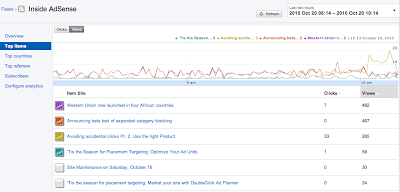
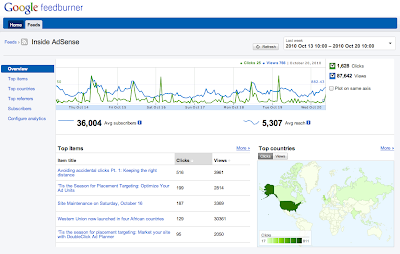
Good news! Today, we will be rolling out a new, experimental interface for Google FeedBurner. The real story is what’s new under the hood, however: the new interface provides real time stats for clicks, views, and podcast downloads, which means you can start seeing what content is drawing traffic from feed readers, Twitter, and other syndicated sources as it happens.


Additionally, if you use the FeedBurner Socialize service, and your platform uses PubSubHubbub or you ping us when you post, you can for the first time get stats on how much traffic your feed items are receiving from Twitter, as well as feed reading platforms like Google Reader in one place. Again, all within seconds of posting your content. Ping? Pong! Yep. That fast.


Your subscriber and reach numbers are still calculated based on a whole day's worth of requests, and are based on the traffic you received yesterday and before; but your item stats reflect the traffic you are receiving right now.


You can access the new interface by visiting http://feedburner.google.com/gfb/ or logging into feedburner.google.com and then clicking on the "Try out the NEW (beta) version!" link at the top.


The best way to see these real time features is to publish a new post and then switch to the “Last two hours” view to begin seeing updates.


To access feed management or previous analytics functionality, you can continue using the original interface at feedburner.google.com.


In the new interface, we are focusing on two things: our new real-time stats presentation and getting messages about and issues with your feed posted to the top-level dashboard, so that you can better diagnose any issues that may prevent your feed from being delivered in real time. If you have any comments or questions, look for the “Send Feedback” link at the top of the page to tell us what you think. source

Saturday, July 30, 2011

Membuat daftar isi blog


Daftar Isi di gunakan untuk mempermudah, para pengunjung blog melihat artikel-artikel apa saja dalam sebuah blog. Nah kali ini saya mendapat script yang bagus untuk membuat daftar isi tersebut di dalam sebuah blog, gimana tertarik juga untuk membuatnya. O iya script ini saya dapatkan dari blognya AbuFarhan [dot] com. makasih Abu Farhan buat scriptnya,...


Jadi lumayan khan jika pengunjung melihat daftar isi ini, terus tertarik dengan beberapa posting artikel yang sudah kita buat, he he he jadi di klik untuk di lihat, keren. Jangan lupa untuk menambahkan link DAFTAR ISI di Tab Menu ( Menu atas) Baca juga tentang tutorial seputar tab menu di Seputar link menu di sini


Dan pastikan juga postingan dan artikel kamu telah memiliki kategori atau label. (Jika tidak maka judul-judul postingan daftar isi tidak akan muncul) Oke langsung aja nih diah! script membuat daftar isi blogger-nya. Copy-paste kode di bawah ini :


  • Ganti alamat URl saya http://piss-blogger.blogspot.com dengan URL milik kamu
  • Kemudian Paste-kan di postingan baru, beri judul DAFTAR ISI
  • Jangan di "Compose" tapi KLIK Edit HTML

  • Kemudian baru paste-kan kode di atas.
  • Terakhir Terbitkan Entri
  • Dan Lihat.
Yap! tampilannya agak mirip-mirip site map yah!. Tampilannya akan seperti contoh kurang lebih, oke selamat mencoba script daftar isi blognya, salam.

Thanks source!

Facebook widget, tool for your optimation blog and website


Facebook is the largest social networking site with more than 400 million active users and is growing larger every day! Make sure to use these Facebook widgets for your website or blog to connect with your large Facebook audience. You can use these tools to easily share certain profile information, websites, blogs, and businesses with the Facebook community.

Personal Profile Widgets


Like Badge
Display your Facebook pages for all to see.


Profile Badge
Create a Facebook profile badge to share selected profile information on your website. A profile badge will allow your users to easily connect with you and add you as a friend.

Photo Badge
This photo badge allows you to share your Facebook photos on websites and blogs. Choose from a vertical, horizontal, or two-column layout and also choose the number of photos to be displayed.

Basic Widgets for Website or Blog


Like Box
This allows your users to publish their content and activity to Facebook.


Share Button
A powerful facebook widget which allows your visitors to share your content on Facebook! An excellent Facebook widget for blogger.


Page Badge
Lets you share your Facebook page (one that you have created) information on your website.


Twitter Link
Connect your Facebook page with Twitter. Whenever you update your Facebook page, your twitter followers will be updated as well with a tweet. A great Facebook widget for your website!


Developers Widgets for Website or Blog


Like Button
Allows facebook users to share web pages from your website on their profile.


Comments Box
Lets your users comment on your website content with their Facebook account.


Recommendations
Provides your website users with personalized suggestions for pages to visit.


Live Stream
Lets Facebook users to post and share content in real-time.


Activity Feed
Lets users know what their facebook friends are doing on your website through comments and likes.


Login Button
Displays a login button along with profile pictures of facebook friends who have already signed up.


Facepile
Shows profile pictures of people who have liked your facebook page or have signed up for your webpage.
Thanks to source

Blogger tag cloud widget by categorize

This widget is perfect for blogspot users who desire a simple tag cloud for their Categories. The Labels Cloud can easily be implemented within the sidebar of your blog and will match your template wonderfully.
Steps for Implementation

Step 1: Back it Up
Always make sure to back up your Blogger Template before doing anything else!

Step 2: The Labels Gadget

Make sure that you have the Labels Page Element installed. If you haven't already...
  • Go to Layout >Page Elements .
  • Click "Add a Gadget" and then add the "Labels" gadget.
Step 3: Locating the "Old Code"
  • Now go to Layout >Edit HTML
  • Make sure that the "Expand Widgets Template" box is unchecked.
  • Now we need to search for the code that looks like this.
Your code may look a little different. So try using your browser's search tool to find type='Label'.

Step 4: Replacing the "Old Code" with the "New Code"
  • Once you've located type='Label', remove the whole line of code that looks just like the code mentioned in part 3 of step 3.
  • Replace this code that you've just deleted with the code below:
/*
Distributed by John Smith at WidgetsForFree.blogspot.com
*/


Powered by Blogger Widgets

Step 5: Previewing the New Tag Cloud
Before saving the template make sure to click preview. The new tag cloud should now be visible. If not, make sure that you've completed all the steps correctly.

Thanks source

Membuat navbar Google Friend Connect


Google Friend Connect (GFC), selain memiliki fungsi sebagai pertukaran link blogger profile ternyata juga sangat banyak pilihan widget dan fungsi navbar yang bisa di tambahkan di blog Anda.


Salah satunya yaitu menambahkan navbar GFC (semacam bar navigasi) di dalam blog Anda. Fungsinya hampir sama dengan GFC yang berada di sidebar widget namun biasa fungsi navbar di pergunakan untuk merapatkan atau menyelipkan di atas ataupun di bawah header ataupun footer blog Anda, sehingga penampilannya bisa menghemat sidebar blog Anda.


Sebelumnya saya pernah juga membuat menambahkan Buku tamu dengan google friend connect, dan sekarang dua fungsi dapat di lengkapi dengan GFC navbar ini, yaitu profile pengikut sekaligus buku tamunya (hemat khan!) contohnya bisa Anda lihat di http://www.ossamples.com/socialmussie/


Penasaran oke sekarang kita mulai cara menambahkan Navbar GFC di dalam blog.


Buka Google Friend Connect --- www.google.com/friendconnect
Masukan email dan password (saya sarankan gunakan email dan password blogger profile milik Anda)


Di situ ada form di situs mana navbar GFC akan di buat, namun jika kamu sudah mempunyai akun blogger maka tinggal di klik saja nama blog Anda (di sebelah kiri).


KLIK Ramban galeri gadget --- Pilih Social Bar


1. Selanjutnya pada OPSI


  • Pilih posisi navbar : Atas/bawah (terserah Anda).
  • Beri tanda centang pada ikutkan gadget komentar -jika Anda ingin menyertakan komanter, bila tidak -di hilangkan saja tanda centangnya.
  • Komentar berlaku : pilih seluruh situs, kecuali dalam satu akun blogger Anda memiliki lebih dari satu blog bisa di pilih laman atau id (ini adalah id masing2 blog berbeda, lihat pada jendela browser pada saat login ke blog anda rearrage?blogID=3029274859473524).
  • Bubuhi teks berikut di area komentar: bisa di ubah sesuai keinginan Anda.
  • Tajuk komentar: juga sama bisa di ubah sesuai kemauan Anda
  • Izinkan pengunjung mengeposkan tautan YouTube : adalah izin tuk mengeposan tautan dari youtube.
  • Izinkan pengeposan anonim : Jika di beri centang maka siapa saja bisa berkmentar di navbar, sebaliknya jika tidak di beri centang hanya pengguna Akun blogger saja yang bisa berkomentar di navbar komantar.


Jika sudah selesai pengaturannya :


2. KLIK BUAT KODE
Copy pastekan di tambah gadget --- Pilih Html/javascript pada blog Anda.


Jika cara ini tidak berhasil


KLIK Edit Html cari kode
kemudian Copy pastekan kode dari google friend connect social bar yang telah Anda buat tadi di atas kode


dan Simpan


beres, selesai silahkan di coba... mungkin tampilan navbar blogger GFC ini bisa menambah daya tarik blog Anda, mantab salam ngeblog... semangat selalu.


Thanks source

Wednesday, July 13, 2011

Cara membuat tampilan blogspot di seluler

Apabila agan2 memiliki banyak pengunjung situs yang datang dari perangkat Handphone misalkan melalui Opera Mini, Bolt, UCWEB dan ingin menampilkan sebuah situs Seluler yakni situs yang menghemat kuota internet ketika browsing melalui handphone, misalkan seperti yang dipakai oleh vivanews di beberapa situs mobilenya seperti wap.vivanews.com atau m.vivanews.com.
Untuk situs blogger saya merekomendasikan tidak untuk pergi ke situs utama demi menghemat biaya ketika browsing selain itu blogger juga sudah meluncurkan template untuk Situs Seluler. template Blogger seluler ini dalam percobaan tapi Anda bisa mengaktifkannya melalui Dashboard Blogger Anda, Template asal tidak akan berubah.
Caranya Ikuti langkah-langkah di bawah ini untuk Mengaktifkan situs Blogger Mobile anda. Tips Mengaktifkan Situs Mobile Dari Blogger :
1. pergi ke http://draft.blogger.com
2. Pilih Blog yang ingin ditambahkan template seluler (u/) yang memilki lebih dari satu blog.
3. Pilih Pengaturan dan klik Email & Seluler

4. Pilih "Ya" pada pilihan Tampilkan Template Seluler
5. Klik PRATINJAU SELULER maka akan muncul jendela baru seperti contoh blog saya di bawah ini :

6. Copy - Paste Link Situs Mobile Anda (lihat yang ditandai)

7. Klik Simpan Setelan.
8. Bagikan Link tersebut ke sahabat dan para pengunjung situs anda


SUMBER : http://ditsaja.blogspot.com/2011/06/cara-membuat-tampilan-blogspot-di.html

Sunday, July 10, 2011

Cara Memperlebar Halaman Blog


Mungkin sekarang waktunya untuk mengoprek Template kita sob agar tampilan blog kita sesuai dengan kemauan kita. Disini saya akan menjelaskan tentang Memperlebar Halaman Blog agar lebih dinamis dan nyaman untuk baca-baca, sebelum mengoprek Template kita saya akan menjelaskan sedikit tentang elemen yang perlu di lebarkan.

Sebelum saya menjelaskan dari masing-masing elemen-elemennya saya mau minta maaf kepada master-master blogger klo saya sok tahu atau sok pintar, saya hanya ingin membagikan ilmu kepada sobat setia blog saya.Okey simak masing-masing penjelasannya y sobat :
  1. Body ==>> elemen/area yang ada di paling belekang yang mencakup keseluruhan sebuah template
  2. #outer-wrapper ==>> elemen ini letaknya di depan body yang berisi elemen-elemen seperti #header, #main, #sidebar-wrapper, dan #footer-Wrapper
  3. #header ==>> karena namanya header ya berarti kepala artinya tempat atau areanya ada di atas Template yang berisi Judul blog dan Deskripsi Blog
  4. #main ==>> elemen yang satu ini isinya tentang artikel yang kita tulis atau post dan kotak komentar
  5. #sidebar-wrapper ==>> klo elemen yang satu ini isinya ya widget-widget yang biasa sob pakai seperti buku tamu trus statistik dll.
  6. #footer-wrapper ==>> elemen ini letaknya ada di paling bawah Template yang berguna untuk meletakkan Widget atau pun yang lain

Nah kalau sobat kurang mengerti tentang penjelasan di atas, nih saya kasih contoh gambarnya :

Nah sekarang sudah jelaskan 
Bagian-bagian dari Template. kalau memang ada yang kurang, maaf y sobat semua karena elemen-elemen tersebut saya ambil dari Template saya sendiri.

Oke Penjelasan sudah, Contoh gambar sudah sekarang apa lagi y?? oiya 
Cara Memperlebar Halaman Blog, ikuti y langkah-langkah di bawah ini :
  1. Login ke blogger dengan id sobat
  2. Masuk ke Tata Letak ==>> Edit HTML
  3. Sebelum mengoprek Backup dulu y Template sobat dengan cara Download Template Lengkap
  4. Setelah selesai membackup Template sobat cari kode yang akan di lebarkan, saya kasih contoh : #Outer-Wrapper, apabila sobat menggunakan Mozilla tekan Shift+F3 agar lebih mudah dalam pencarian
  5. Nah setelah ketemu akan ada tampilan kurang lebih seperti di bawah ini


    #outer-wrapper {
    background:#000;
    width:973px;
    margin:0 auto;
    padding:0;
    text-align:left;
    border:2px solid #1A1A1A;
    }

  6. Nah sobat perhatikan tulisan yang bercetak tebal dan miring, tulisan tersebut yang mempengaruhi lebar dari #outer-Wrapper. Apabila sobat ingin di perlebar tinggal ganti saja angka yang bercetak Tebal dan miring menjadi angka yang lebih tinggi dari semula.
  7. Nah kalau kira-kira sudah cukup jangan dimpan dulu takut tidak sesuai keinginan maka sobat harus melihat Preview-nya dengan mengklik Pratinjau
  8. Nah kalau sobat sudah lihat dan sesuai kenginan baru dech sobat Simpan
  9. Kalau untuk elemen yang lain ingin sobat perlebar sobat bisa coba sendiri ya, caranya sama seperti itu qo tanpa ada perbedaan.
  10. Nah sekarang selesai dech.

Saturday, September 25, 2010

Tips Mengedit HTML Blogspot

Jika kita mengotak-atik atau mengedit HTML blog kadang2 akan mengalami kesulitan, apalagi bagi yang masih agak pemula. Entah itu gak bisa nemu kode yang mau diedit lah, gak bisa disimpan karena error lah, Ada pesen error yang gak jelas lah, dan lah-lah yang lain, ya to...??? Nha trik dan tips kali ini akan mencoba gimana cara untuk mengatasi atau setidaknya mengurangi masalah "lah-lah" yang kadang2 atau sering terjadi tersebut.
Berikut ini beberapa tips untuk edit HTML bogger:

1. Backup Template

Membackup template ini penting karena jika terjadi hal-hal yang tidak dinginkan, misalnya blog jadi rusak maka kita bisa membuatnya seperti sediakala (sebelum rusak) jika kita sebelumnya sudah membackup template. Cara membackup template ini mudah. Cukup klik pada link "Download Full Template" lalu simpan file template di komputer kita. Kalo terjadi kesalahan yang tidak bisa kita atasi, kita tinggal upload aja file template tersebut.

2. Memberi Tanda Centang pada Kotak "Expand Widget Template"
Ini yang kadang2 dilupakan para "editor". Kalau kotak "Expand Widget Templates" tidak dicentang maka kode2 yang dicari kemungkinan tidak ditemukan. Tapi kadang2 hal ini tidak perlu dilakukan tergantung dari petunjuk tutorialnya. Makanya perhatikan baik2 tutorialnya kalo mau Edit HTML blog.

3. Tips Mempermudah Pencarian
Untuk mempermudah pencarian kode yaitu dengan meng-copy dulu kode yang mau dicari kemudian tekan "Ctrl+f" lalu masukkan kode yang dicopy tadi kedalam kotak yg muncul. Kalo misalkan kode yang dicari tidak muncul maka cobalah mencari sebagian dari kode tersebut. Misal mau mencari kode jika tidak ketemu maka cb carilah sebagiannya atau seperti ini data:post.body kalau sudah ketemu maka klik tombol next untuk melihat apakah ada kode lain yang sama untuk memastikan kode yang dikehendaki. Tapi tips ini sepertinya sulit dilakakukan jika menggunakan browser "Chrome" paling mudah jika menggunakan "Mozilla Firefox".


4. Tips Menghadapi Error Yang Muncul
Jika saat menyimpan hasil editan kemudian muncul pesan error, misal seperti ini:
We were unable to save your template
Please correct the error below, and submit your template again.
Your template could not be parsed as it is not well-formed. Please make sure.....
Maka hal yang harus kita lakukan adalah berusaha memahami pesan error tersebut. Kemudian kita cek kembali tutorial yang kita baca apakah langkah-langkah yang sudah kita lakukan bener2 sesuai dengan tutorialnya. kalau tidak yakin maka kita bisa mengulangi lagi tutorialnya dari awal dengan mengklik tombol "Clear Edit" terlebih dahulu.

Mungkin untuk masalah mengahadapi berbagai pesan error ini akan kita bahas lebih lanjut diepisode yang lainnya yang lebih spesifik.

Yak mungkin itu aja dulu tips-tips dalam pembahasan kali ini. Kita jumpa lagi di tips-tips berkutnya.

Share

Twitter Delicious Facebook Digg Stumbleupon Favorites

 
Photobucket